


Download Paragon Drive Backup – Free Windows Backup Tool
Overview
Paragon Drive Backup is a lightweight, free backup utility designed exclusively for Windows desktops. First released in the early 2000s, the program has become a staple for users who need a straightforward way to protect the data on their hard drives and individual partitions. The latest stable version, 9.0, was updated on September 8 2008, and despite its age, the software still enjoys a solid reputation among Windows 2000‑era enthusiasts and legacy‑system administrators.
As a member of the Security Software category with a sub‑category focus on Security Backups, Paragon Drive Backup offers a no‑frills, secure approach to cloning drives, creating image files, and scheduling regular backups. The tool is distributed in English only and can be downloaded directly from the developer’s site or trusted software repositories. Since its addition to our curated list in 2011, it has amassed over 16 000 downloads, a testament to its continued relevance for users looking for a free, dependable backup solution without the bloat of modern commercial suites.
Key Features, Benefits, Pros & Cons
Feature List
- Full‑disk and partition‑level backup – clone entire drives or target specific partitions.
- Image‑based backup format – creates compressed .pbd files for efficient storage.
- Scheduled backups – automate daily, weekly, or monthly backup cycles.
- Boot‑able rescue media creation – generate a recovery CD/USB to restore systems offline.
- Incremental backup support – only changed blocks are saved after the initial full backup.
- Secure copy with password protection – encrypt backup files to prevent unauthorized access.
- Command‑line interface – integrate into scripts for advanced automation.
- Simple, wizard‑driven UI – ideal for users with limited technical expertise.
Benefits
The primary benefit of Paragon Drive Backup lies in its simplicity. Users can protect critical data without navigating through complex menus or purchasing additional licenses. Because the software is free, it provides a cost‑effective alternative to premium backup suites, especially for home users, small businesses, and IT professionals maintaining legacy hardware. The encrypted backup option adds a layer of security, ensuring that sensitive files remain confidential even if the backup media is lost or stolen. Moreover, the ability to create bootable rescue media gives peace of mind for disaster recovery scenarios where the operating system itself becomes corrupted.
Pros
- Completely free – no hidden fees or trial periods.
- Lightweight installer – minimal impact on system resources.
- Works on older Windows versions (2000, XP, Vista).
- Intuitive wizard interface – easy for beginners.
- Supports scheduled and incremental backups.
- Secure, password‑protected backup files.
Cons
- Last major update was in 2008 – limited support for newer Windows releases.
- No native support for macOS, Linux, Android, or iOS.
- Feature set is basic compared to modern commercial backup suites.
- No cloud integration – backups must be stored locally or on external media.
- Documentation is sparse and outdated.
Installation, Usage & Compatibility
Installation Steps
Installing Paragon Drive Backup is a straightforward process that can be completed in under five minutes. Follow these steps to get the tool up and running on your Windows machine:
- Download the installer from the official Paragon website or a reputable software mirror. The file is typically named
ParagonDriveBackup9.exe. - Double‑click the downloaded executable to launch the setup wizard.
- Accept the End‑User License Agreement (EULA) and click “Next”.
- Choose the destination folder (the default is
C:\Program Files\Paragon\DriveBackup) and click “Install”. - When the installation completes, select “Run Paragon Drive Backup now” and click “Finish”.
The program does not require a reboot, and it will automatically detect all attached hard drives and partitions upon launch. For users who prefer a silent or scripted installation, the installer supports the /S silent switch for unattended deployment across multiple machines.
How to Create Your First Backup
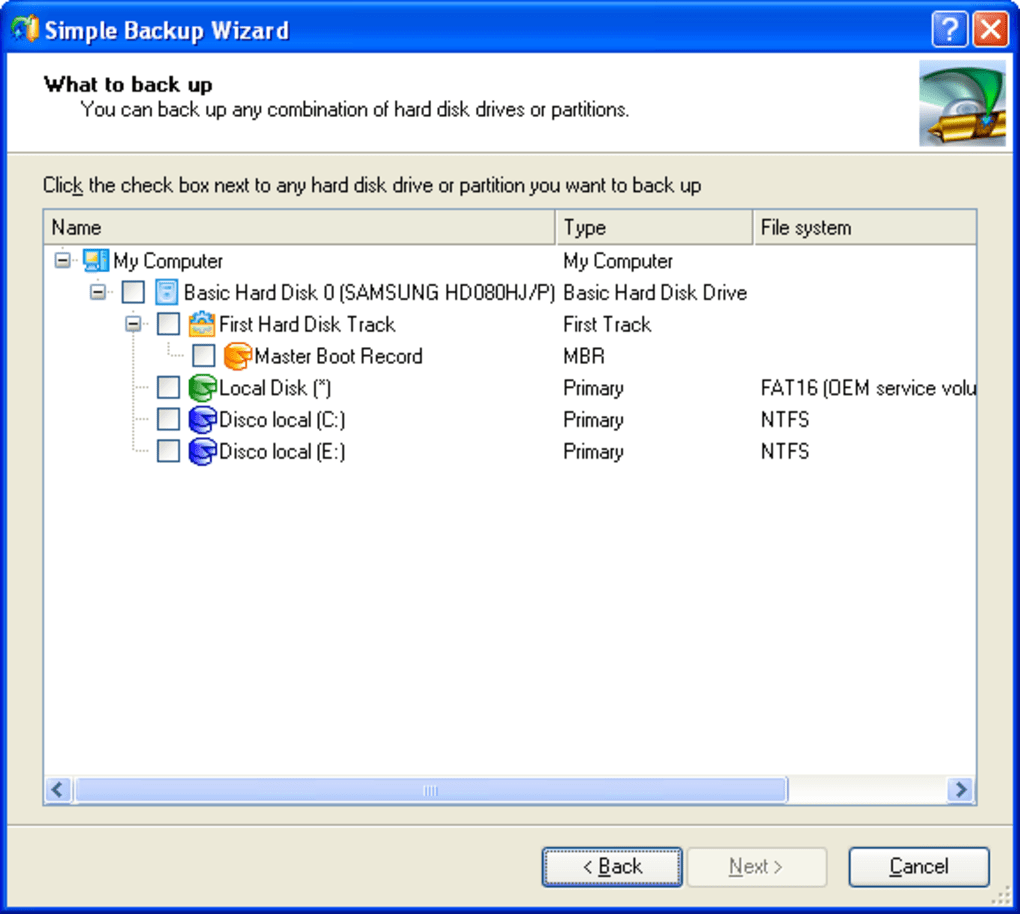
Once installed, launching the application presents a clean dashboard with a “Create Backup” button. Clicking this button opens a wizard that guides you through three main steps:
- Select Source: Choose the entire disk or a specific partition you wish to back up.
- Choose Destination: Pick a local folder, external USB drive, or network share where the backup image will be saved.
- Configure Options: Enable encryption, set a password, and decide whether to schedule recurring backups.
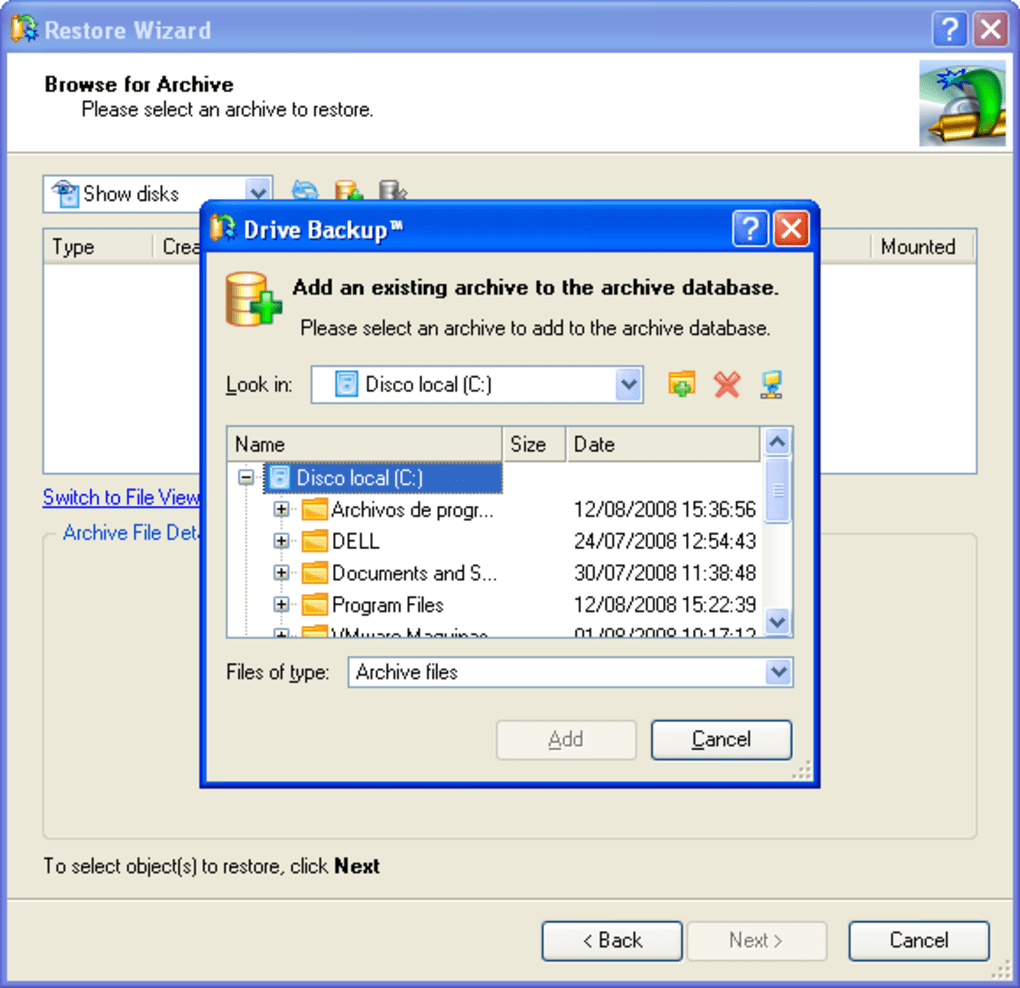
After confirming your selections, the backup process begins. Progress is displayed in real time, and you can pause or cancel the operation at any point. Upon completion, Paragon Drive Backup generates a .pbd image file that can be restored using the same application or via the bootable rescue media you may have created earlier.
System Compatibility
Paragon Drive Backup is built for legacy Windows operating systems. Officially supported platforms include:
- Windows 2000 (SP4)
- Windows XP (SP3)
- Windows Vista (32‑bit)
- Windows 7 (32‑bit) – limited functionality due to age of the software
While the tool can be installed on newer versions such as Windows 10 or Windows 11, users may encounter compatibility warnings or missing driver support. For modern environments, a virtual machine running a supported OS is a viable workaround. The software does not have native versions for macOS, Linux, Android, or iOS, so it remains a Windows‑only solution.
Frequently Asked Questions
Is Paragon Drive Backup really free?
Yes, the software is completely free for personal and commercial use. There are no hidden fees, trial periods, or mandatory upgrades.
Can I back up to a network location?
Absolutely. During the destination step, you can specify a UNC path (e.g., \\SERVER\BackupShare) to store the image on a network attached storage device.
How secure is the encrypted backup option?
The encryption uses a 128‑bit AES algorithm, which is sufficient for most personal data protection needs. However, for highly sensitive information, consider a dedicated encryption tool.
Can I restore a backup on different hardware?
Yes. The image file can be restored to a drive of equal or larger capacity, even if the hardware differs. You may need to adjust drivers after restoration.
Is there any technical support available?
Official support from Paragon has been discontinued. Users rely on community forums and archived documentation for troubleshooting.
Conclusion & Call to Action
Paragon Drive Backup remains a solid choice for anyone who needs a free, no‑frills backup solution for older Windows machines. Its straightforward interface, encrypted backup capability, and support for scheduled tasks make it a practical tool for protecting critical files without incurring additional costs. While the lack of recent updates and modern OS support limits its appeal for contemporary environments, the software excels in niche scenarios—such as legacy system maintenance, small‑office data protection, and educational labs where budget constraints are paramount.
If you run Windows 2000, XP, or Vista and are looking for a reliable way to safeguard your partitions, give Paragon Drive Backup a try. The download is quick, the installation painless, and the peace of mind that comes from having a secure image of your drive is priceless. Click the button below to start your free download and begin protecting your data today.







